An online journey often feels like planting seeds in a field: you want to see them grow, but you need the right tools to measure progress. For creators and businesses using SMM panels, one of the most important steps is knowing how to check your SMM panel order.
Whether you’re waiting for followers on Instagram, views on TikTok, or subscribers on YouTube, tracking your order ensures you’re not left in the dark. Just like a farmer checks the soil before harvest, you need to confirm that your order is moving from pending to completed. This guide will show you simple ways to track, verify, and understand your SMM panel orders so you stay confident and in control.
Key Factors to Consider
How to Check Your SMM Panel Order Status

When you place an order on an SMM panel, the first thing you want to know is whether it’s working. Tracking your order status helps you avoid confusion, duplicate purchases, or unnecessary complaints. Nigerian creators often rely on panels to boost visibility, so knowing how to track your SMM panel order is essential.
Getting updates on your order isn’t just about watching numbers change. It’s about feeling secure that your investment is moving forward. You want to see progress without guessing or waiting endlessly. Most panels give you real-time updates, so you can watch your order shift from pending to processing, and then to completion. This transparency builds trust and keeps you in control.
Sometimes, orders may take longer than expected. That’s normal. Different services have different delivery times, and external factors can slow things down. But if you keep an eye on your order status, you’ll know when to be patient and when to ask questions.
Also, tracking helps you spot mistakes early. If you entered the wrong username or link, or if payment didn’t go through, you’ll catch it fast. This saves you from losing money or waiting for something that won’t happen.
Where to Find Your SMM Panel Order ID
Your order ID is a unique number assigned to every order. After payment, most panels display this ID on the confirmation page or send it via email. Keeping it safe makes it easier to track progress or resolve issues with support.
This little number is your best friend when it comes to tracking your order. It’s not just a random string of digits: it’s the key that unlocks all the details about your purchase. Whenever you want to check how things are moving, this ID helps you find your exact order without any mix-ups.
If you ever need help from customer support, having your order ID ready speeds things up. It shows you’re organized and serious about getting your order sorted. Some panels even let you copy the ID directly from your dashboard, so you don’t have to dig through emails.
Keep your order ID somewhere safe and easy to find. Whether it’s a note on your phone or a dedicated folder in your email, having quick access means less stress. And if you’re managing multiple orders, this ID helps you keep everything clear and separate.
Don’t ignore this step. It might seem small, but it makes a big difference. When you know where to find your order ID and how to use it, tracking your SMM panel order becomes simple and hassle-free. It’s like having a direct line to your order’s progress, right at your fingertips.
Where to Find the Orders or Order History Tab
Within your SMM panel dashboard, there’s usually a tab labeled “Orders” or “Order History.” This section lists all active and past orders. Nigerian users can identify the specific order by checking the ID, service type, or date.
This tab is your go-to spot for keeping track of everything you’ve ordered. It’s designed to give you a clear view of what’s happening with each service you’ve requested. You can quickly scan through the list and spot the order you want to check without any hassle.
Most panels make it easy to filter or sort orders, so you don’t have to scroll endlessly. Whether you want to see your newest orders or dig into older ones, this section keeps things organized and simple.
If you’re juggling multiple orders, this tab helps you stay on top of each one. It’s like having a personal assistant that keeps all your order details in one place. Plus, some panels even let you click on an order for more detailed info, like delivery progress and any notes from the provider.
Using this tab regularly means you’re always in the loop. You won’t miss updates or surprises because everything is right there, easy to find and understand. It’s a small step that makes a big difference in managing your SMM panel orders smoothly and confidently.
Step-by-Step Guide to Track an SMM Panel Order in Nigeria

Tracking your SMM panel order doesn’t have to be confusing or stressful. When you know what to look for and where to find it, everything becomes clearer. This guide is here to help you move smoothly through the process. It’s about giving you the confidence to check your order status without second-guessing or feeling lost.
This works like your personal roadmap. It breaks down the key points you need to focus on so you can stay updated and in control. No complicated jargon or extra fluff, just simple, clear steps that make sense. Whether you’re new to SMM panels or have used them before, this guide will help you feel more sure about what’s happening with your orders.
You’ll see how easy it is to find the information you need and understand what it means. This way, you can avoid mistakes and get the best results from your investment. Let’s get started and make tracking your orders something you actually look forward to.
Step 1: Log Into Your SMM Panel Dashboard
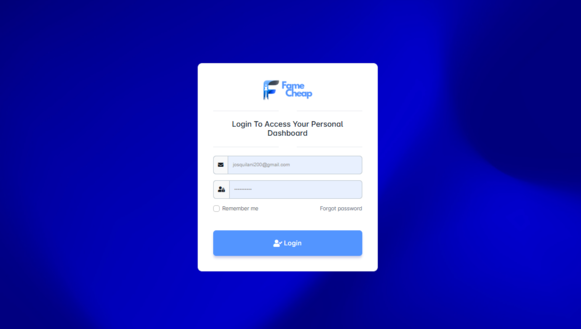
Use the same account you placed the order with. Once logged in, navigate to the dashboard where all your services are managed.
Step 2: Open Your Orders or Order History
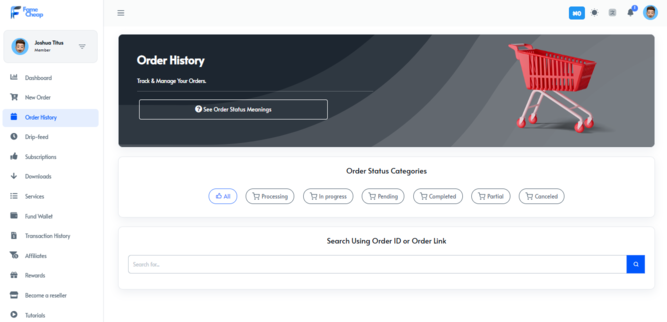
Locate the tab that shows active and completed orders. Match your order using the ID, service name, or date of purchase.
Step 3: Check the Order Status and Delivery Progress
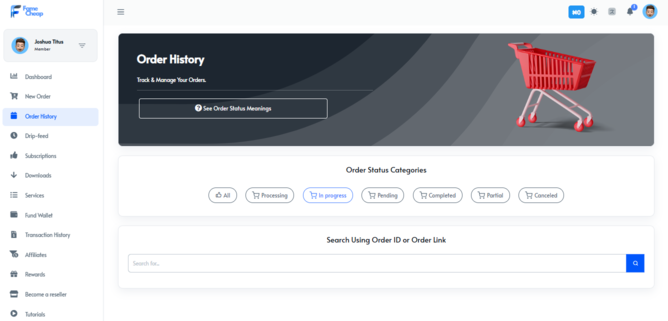
Panels usually display details such as start count, quantity ordered, delivered quantity, and remaining balance. Reviewing these helps you confirm whether the order is still pending, processing, or completed.
What Do Pending, Processing, Completed, and Partial Orders Mean?

Understanding status labels prevents unnecessary panic or duplicate orders. These terms are your guideposts, helping you know exactly where your order stands without confusion. When you see “Pending,” it means your order is waiting in line, ready to start but not quite moving yet. “Processing” shows that things are happening: your order is actively being worked on, and progress is underway. “Completed” means the job is done, but sometimes you might need to double-check your social account to see the results.
“Partial” delivery means only some of your order has arrived, which can happen for various reasons. Knowing these labels keeps you calm and informed, so you don’t rush into canceling or placing the same order twice. It’s like having a clear map that shows where you are and what’s next. This way, you stay in control and avoid surprises. These simple words carry a lot of power when you understand what they mean for your order.
What Does a Pending SMM Order Mean?
Pending means the panel has received your order but hasn’t started delivering. Before contacting support, check if your payment cleared and if the link provided is correct. This stage is all about waiting your turn. Sometimes, orders stay pending for a short while because the system is lining up requests. It’s normal and usually nothing to worry about. If the pending status lasts longer than expected, double-check your payment and details.
If everything looks good, give it a bit more time. Patience here pays off. Avoid rushing to cancel or reorder, as that can cause confusion and delays. The panel will start processing as soon as it’s ready, and you’ll see progress soon enough. Pending is the calm before the action. It’s the quiet moment before your order begins its journey. So, keep an eye on it, but don’t stress. Your order is in the queue, and it’s about to move forward.
What Does Processing Mean on an SMM Panel?
Processing indicates the order is actively being delivered. This stage may take time depending on the service type and quantity requested. It means your order is no longer waiting: it’s moving. You might see numbers changing as the service gets delivered bit by bit. Sometimes, the speed depends on how big your order is or how busy the panel’s system might be. Don’t worry if it doesn’t finish instantly, as good things take a little time.
If you’re watching the progress bar or delivery count, you’ll notice steady updates showing your order is on its way. This is the moment when your investment starts turning into real results. Stay patient and keep checking back. If the process seems stuck for too long, it’s okay to reach out for support, but usually, the panel is just working hard behind the scenes. Processing means action: your order is genuinely in motion.
What Does Completed Mean if Results Are Missing?
Completed means the panel has finished delivery. If results are missing, verify directly on your social account. Sometimes updates take a few minutes to reflect. This delay happens because social platforms need a moment to update their data. It’s normal for the numbers or followers to not show up instantly. Don’t panic if you don’t see immediate changes. Give it a little time and refresh your page. If, after waiting, you still don’t see the results, double-check the details you provided during the order.
Sometimes a small typo in your username or link can cause the delivery to miss your account. If everything looks correct and the results are still missing, reach out to the panel’s support team. They can investigate and help resolve the issue. “Completed” means the job is done on their end, but your patience helps ensure everything lines up correctly.
What Does Partial Delivery Mean?
Partial delivery occurs when only part of the requested quantity is delivered. This may be due to service limits or technical issues. Check if the panel offers a refill or balance adjustment.
Sometimes, partial delivery happens because the social platform restricts the full amount you ordered. Other times, technical glitches or limits on the provider’s side can slow things down. It’s not unusual, and many panels have policies to handle this. You might see a note or message explaining the partial status.
If you do, don’t ignore it. Reach out to support and ask about refills or how they handle the balance. “Partial” doesn’t mean failure: it means there’s still a chance to get the rest. Keep track of your order and stay patient. Most panels want to make sure you get what you paid for, even if it takes a little extra time or effort. This way, you stay informed and avoid unnecessary worries or repeat orders.
Don’t Cancel Your SMM Order Until You Check This
Before you think about canceling or complaining, take a moment to check your order carefully. Tracking your order step-by-step helps you avoid mistakes and saves you time. Start with your order ID, then open the Order History tab. Look closely at the status and delivery progress. Check your social media account to see if the results have appeared. If something seems off, reach out to support with all your details ready. Each status, including Pending, Processing, Completed, Partial, Canceled, and Failed, means something different.
Knowing what each one means keeps you from placing duplicate orders or getting frustrated too soon. This simple process puts you in control and helps you get the best from your investment. Don’t wait in confusion or rush into canceling. Instead, use this clear path to stay calm and confident. Boost your social media presence with Famecheap today. Open an account and watch your non-drop followers, likes, and views grow with ease. Your next level of social success is just a click away!
Frequently Asked Questions
Checking your SMM panel order status is a straightforward process that ensures you stay informed about your investment. Start by logging into the SMM panel account you used to place the order. Once logged in, navigate to your dashboard, which is the central hub for managing all your services. Look for a tab labeled “Orders” or “Order History,” as this section contains a complete list of all your active and past orders. Within this tab, you can identify your specific order by matching the order ID, service name, or date of purchase. Most panels display key details such as the quantity ordered, the quantity already delivered, the start count, and the remaining balance. Reviewing these figures helps you confirm whether your order is still pending, actively processing, or fully completed. Some panels also provide real-time progress bars or delivery logs that update as your order moves forward. If you are managing multiple orders, use the filter or sort options to quickly locate the one you need. Once you have found your order, you can monitor its progress over time without needing to contact support for basic updates. This simple step-by-step process puts you in control and eliminates guesswork. By regularly checking your order status, you can catch issues early, avoid duplicate purchases, and feel confident that your investment is delivering the expected results.
Understanding the different status labels on an SMM panel is essential for tracking your orders effectively and avoiding unnecessary confusion. “Pending” means the panel has received your order but has not yet started the delivery process. This is a normal waiting period where your order is in the queue, and it typically resolves once the system begins working on it. “Processing” indicates that your order is actively being delivered. During this stage, you may see the delivered quantity gradually increase as the service is fulfilled. This phase can take time depending on the order size and the provider’s current workload. “Completed” means the panel has finished delivering the full quantity you requested. However, it is important to note that social media platforms may take a few minutes to update and reflect the new numbers, so if results are not immediately visible, a short wait is usually sufficient. “Partial” delivery occurs when only part of your order has been delivered. This can happen due to service limits, technical issues, or platform restrictions. In such cases, many panels offer refill policies or balance adjustments to make up the difference. By knowing what each status means, you can avoid panic, prevent duplicate orders, and know exactly when to reach out for support. These labels are your guideposts to a smooth and transparent order experience.
If your SMM panel order shows as completed but the expected results are not visible on your social media account, there is no need to panic, as this is a common situation with several straightforward explanations. First, allow a few minutes for the social platform to update its data, as there is often a slight delay between the panel’s completion and the reflection of new followers, views, or likes on your profile. Refresh your account page and check again after a short wait. If the results still do not appear, the next step is to verify the details you provided when placing the order. Double-check that you entered the correct TikTok username, Instagram handle, or video link, as a small typo can cause the delivery to miss your account entirely. If everything appears accurate and the results are still missing, it is time to contact the panel’s customer support team. Be prepared to provide your order ID, the service type, and any transaction evidence you have, such as payment receipts or screenshots. This information will help support staff investigate the issue quickly and offer a solution, which may include a refill, a refund, or a balance adjustment. Remember that “Completed” means the panel has finished its work, but your proactive follow-up ensures any discrepancies are resolved. Staying calm, organized, and communicative is the best approach to getting your order back on track.
Your SMM panel order ID is a unique identification number assigned to every order you place, and it is essential for tracking your purchase and resolving any issues. After completing your payment, the panel typically displays this ID on the confirmation page, and it is also sent to you via email for easy reference. Within your dashboard, the order ID is usually listed alongside your order details in the “Orders” or “Order History” tab, making it simple to locate. This ID is important because it serves as the key to all the information about your specific order. When you want to check your order status, the order ID helps you find your exact transaction without confusion, especially if you have placed multiple orders. More importantly, if you ever need to contact customer support for any reason, such as a delay, missing results, or a payment issue, having your order ID ready speeds up the resolution process significantly. Support teams can instantly pull up your order details, diagnose the problem, and take corrective action without wasting time. Save your order ID somewhere safe and easily accessible, such as a note on your phone or a dedicated email folder. This small step can save you from major headaches and ensures you remain in full control of your SMM panel experience.
Partial delivery on an SMM panel occurs when only a portion of the quantity you ordered has been delivered to your social media account. This situation can arise for several reasons, including service limits on the provider’s side, technical glitches, or restrictions imposed by the social platform itself. For example, some platforms may limit how quickly followers or likes can be added to prevent suspicious activity, causing the delivery to be split into smaller batches. When you see a “Partial” status on your order, it does not mean your order has failed; rather, it indicates that the panel is still working on fulfilling the remaining balance. The first step is to check if the panel has included any notes or explanations regarding the partial status. Many reputable SMM panels have clear policies for handling partial deliveries, which may include automatic refills once the service becomes available again or a balance adjustment to your account. If the information provided is unclear, reach out to the panel’s customer support team with your order ID and ask about their refill or compensation policy. Be patient and give the panel time to resolve the issue, as partial deliveries are often temporary and resolved quickly. Avoid placing a duplicate order, as this can lead to over-delivery or wasted funds. Understanding partial delivery helps you stay calm and take the right steps to ensure you receive the full value of your purchase.